Shopify Flow can now react when an order changes after it's placed. Three workflows to set up before the rush
A customer emails a new address an hour after ordering. Someone updates it, and the packer never hears. Shopify Flow can now notice that kind of change on its own, if you tell it which fields to watch.
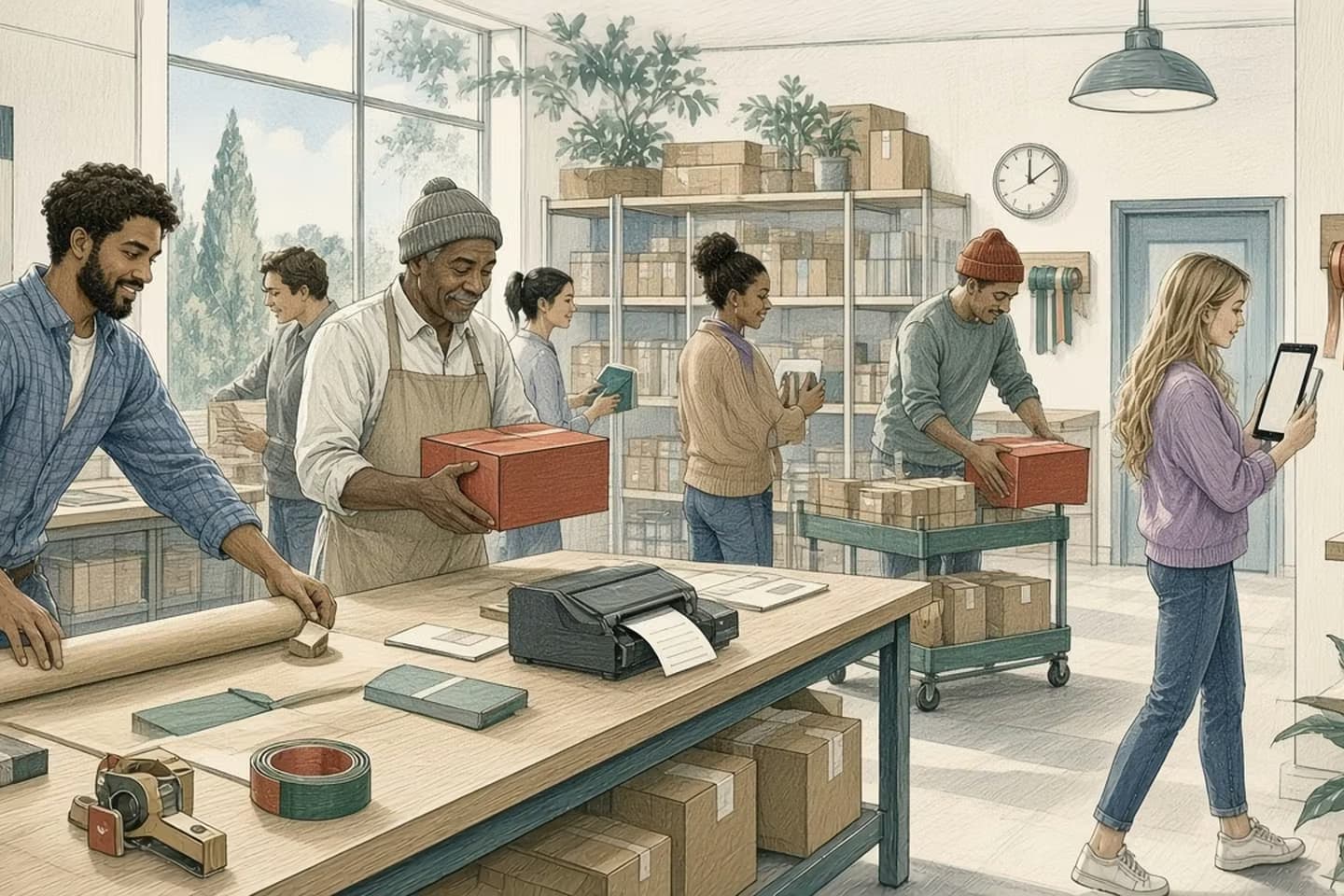
On November 20, 2026 Shopify added eight "updated" triggers to Shopify Flow: customer, order, refund, fulfillment order, return, collection, location and inventory item. Like the Product updated trigger, you pick up to five fields to monitor, and the workflow runs when one changes. Good first uses are alerting the packing team when an order's shipping address changes, reacting when a collection's products change, and updating a product field when an item's cost changes. Start with one, tag rather than act, and test on a real order.
The change that nobody heard about
Here's an illustrative afternoon. A customer orders a gift at 10 a.m. At 11, she emails: wrong address, please send it to her sister's place instead. Someone on the support team opens the order and updates the address. Job done.
Except the packer printed the morning's labels at 10:30, and the box is already sealed with the old address on it. Nobody told the packing bench, because nothing in the system tells the packing bench when an order changes after it's been placed.
Most order problems aren't caused by the change. They're caused by the person who didn't hear about it.
On November 20, 2026, Shopify added eight new triggers to Shopify Flow, its built-in automation tool, that are made for exactly this. A workflow can now start when a customer, order, refund, fulfillment order, return, collection, location or inventory item is updated. You choose up to five fields to watch, and when one of them changes, the workflow runs. Shopify says they work like the existing "Product updated" trigger, and that they make it easier to act on changes without scheduled workflows or workarounds.
The table under this section shows three places we'd start. Each one is a real example from Shopify's announcement, turned into a recipe.
Decision guide
Three recipes at a glance
| Consideration | Trigger and what to watch | What the workflow does |
|---|---|---|
| Order updated | The shipping address. | Tags the order and tells the packing team before the label prints. |
| Collection updated | Products added or removed. | Tells the person who owns the sale or the homepage. |
| Inventory item updated | The item's cost. | Updates a product field the team uses for margin or reorder decisions. |
Recipe one: the address that moved
Trigger: Order updated. Field to watch: the shipping address. This is Shopify's own first example, notifying your fulfillment team when an order's shipping address changes.
What the workflow does: adds a tag to the order so it stands out in the list, and sends a message to wherever the packing team actually looks. That might be an internal email, a team chat channel, or a printed note if that's how your bench works. Include the order number and say plainly that the address changed.
How it can go wrong: the message goes to an inbox nobody reads during a rush. Before you switch it on, ask the person who packs which channel they'd actually see within ten minutes. Also think about timing. An address change that happens after the label is printed needs a person to pull the box. One that happens before just needs a fresh label. The tag lets them tell the two apart at a glance.
We've written before about how most delivery problems were typed into the checkout. This one gets typed in afterwards, which is harder to catch.
Most order problems aren't caused by the change. They're caused by the person who didn't hear about it.
Recipe two: the sale that changed shape
Trigger: Collection updated. What to watch: products being added to or removed from a collection, which Shopify mentions in its announcement.
What the workflow does: tells whoever owns that collection. If it's your Black Friday sale collection, that's the person who set the prices and wrote the emails. A product quietly dropping out of a sale collection, or one that shouldn't be there turning up, is the kind of thing that turns into customer emails on Saturday morning.
How it can go wrong: some collections change all the time on purpose, especially automated ones built from rules. If the workflow pings someone every time, they'll mute it by Tuesday. Use this for the handful of collections where a change actually matters, like the sale, the homepage feature or the gift guide. And send the message to a person by name, not to a shared channel, so someone clearly owns the answer to "was that on purpose?"
Recipe three: the cost that went up
Trigger: Inventory item updated. Field to watch: the item's cost. Shopify's example is updating a product metafield when an inventory item's cost changes.
What the workflow does: updates a field on the product that your team uses for decisions, such as a margin figure or a reorder flag. When a supplier's price goes up and someone enters the new cost, the number your buyer looks at changes too, without waiting for a monthly spreadsheet.
How it can go wrong: the workflow is only as good as the formula behind it. Write down, in one sentence, what the field means and how it's worked out, and have a second person check it against a few real products before you trust it. A wrong margin that updates itself is worse than one that's out of date, because it looks current.
The other five
The remaining triggers are worth knowing about even if you don't use them yet. Return updated and Refund updated could tell your support lead when a return's status changes, instead of making them check. Customer updated could flag when contact details change on a wholesale account. Fulfillment order updated and Location updated are useful once you ship from more than one place.
A note of caution, though. Every one of these is a new way for an automation to fire when something changes, including changes made by other apps. Before you add a workflow, check whether another tool is already reacting to the same change. Two systems both "helpfully" handling an address update is how you end up with two labels. We made a similar point when Flow started buying shipping labels on its own.
How the work moves
Rolling out one workflow
- Pick one
Start with the change that has cost you a reship or a refund this year.
- Tag first
Have the workflow add a tag and send a message, nothing more.
- Test on a real order
Change the field yourself and watch who hears about it.
- Then add actions
After two quiet weeks, let it do more than tell people.
Start small, then let it do more
Pick one recipe, the one tied to a mistake that's actually cost you a reship or a refund this year. Build it so it only tags and tells people at first. Then test it on a real order: change the address yourself, and watch who hears about it and how long it takes.
Give it two quiet weeks. If the messages are useful and nobody's muted them, let the workflow do a little more. That might mean holding the order until someone confirms, or assigning it to a named person. Add one action at a time, and keep the message even after the action exists, so a person still knows what the automation just did. If they're noise, change the fields you watch before you add anything else.
If your operation has outgrown what a few workflows can hold, and the warehouse, the storefront and support keep working from different stories, that's the problem our fulfillment operations work is built around. You can talk to us.
Related work: Spin:Market
We build alongside the people doing the work.
Bring us the problem you’re thinking about.